
NVIDIA’s NVLink Spine Unlocks the Future of AI Supercomputing
NVIDIA’s NVLink Spine supercharges AI supercomputing with blazing-fast GPU interconnects for next-gen performance.
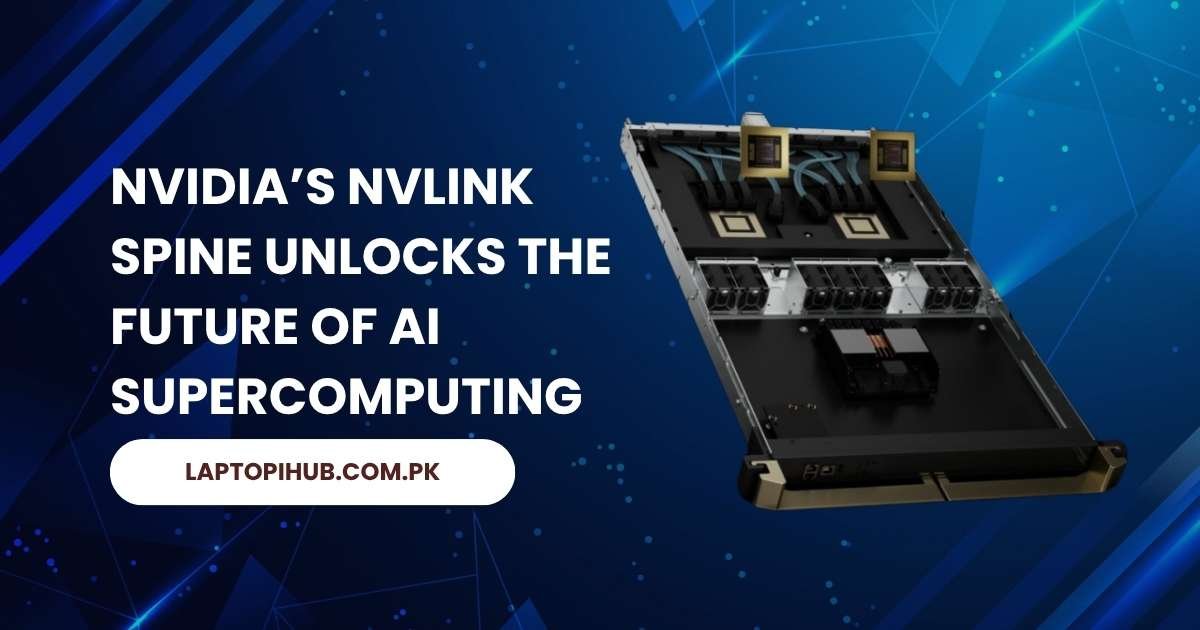
NVIDIA’s NVLink Spine supercharges AI supercomputing with blazing-fast GPU interconnects for next-gen performance.
Explore Intel ARC GPU – performance, gaming features, XeSS, ray tracing, AV1 encoding & more in this ultimate guide.
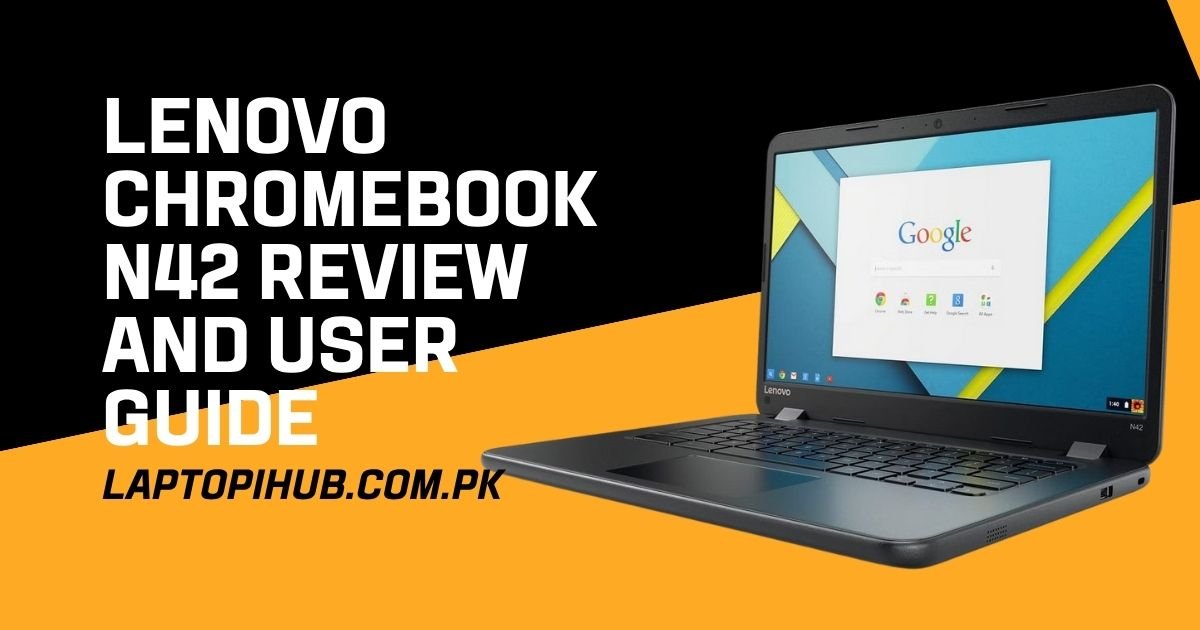
Rugged, budget-friendly, and school-ready—explore the Lenovo Chromebook N42 with full specs, tips, pros & cons, and user guide.
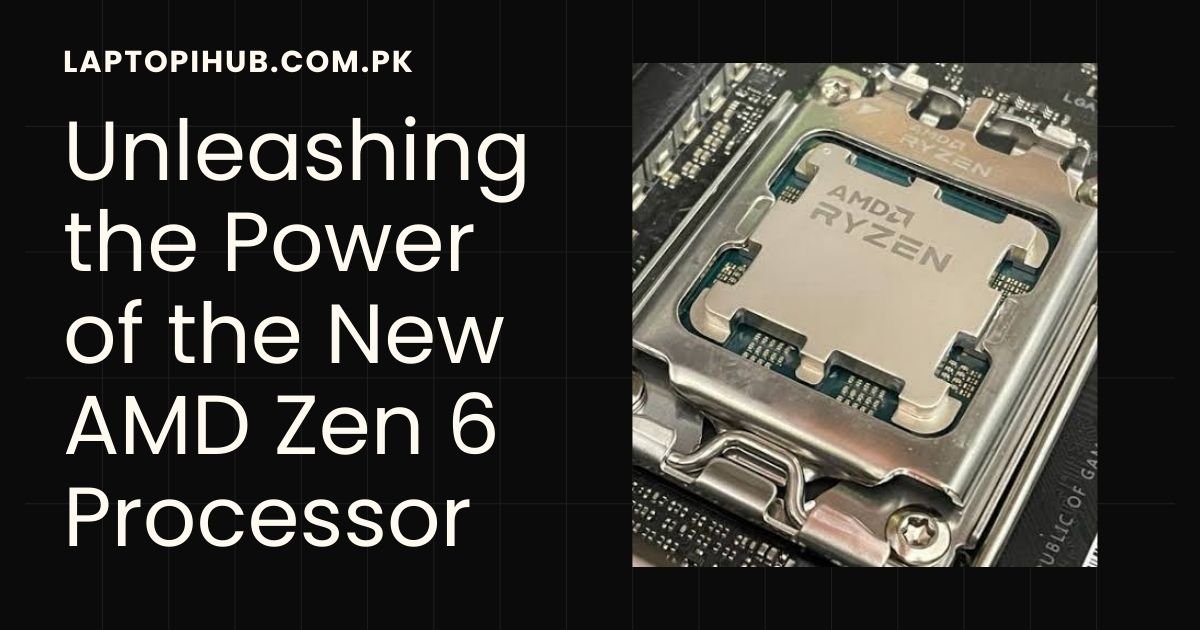
Explore the new AMD Zen 6 processor: next-gen performance, 2nm efficiency, AI power, and epic gaming potential in one powerhouse CPU.

Explore Devokang technology, its real-world impact, benefits, challenges, and why it’s changing the future of innovation.
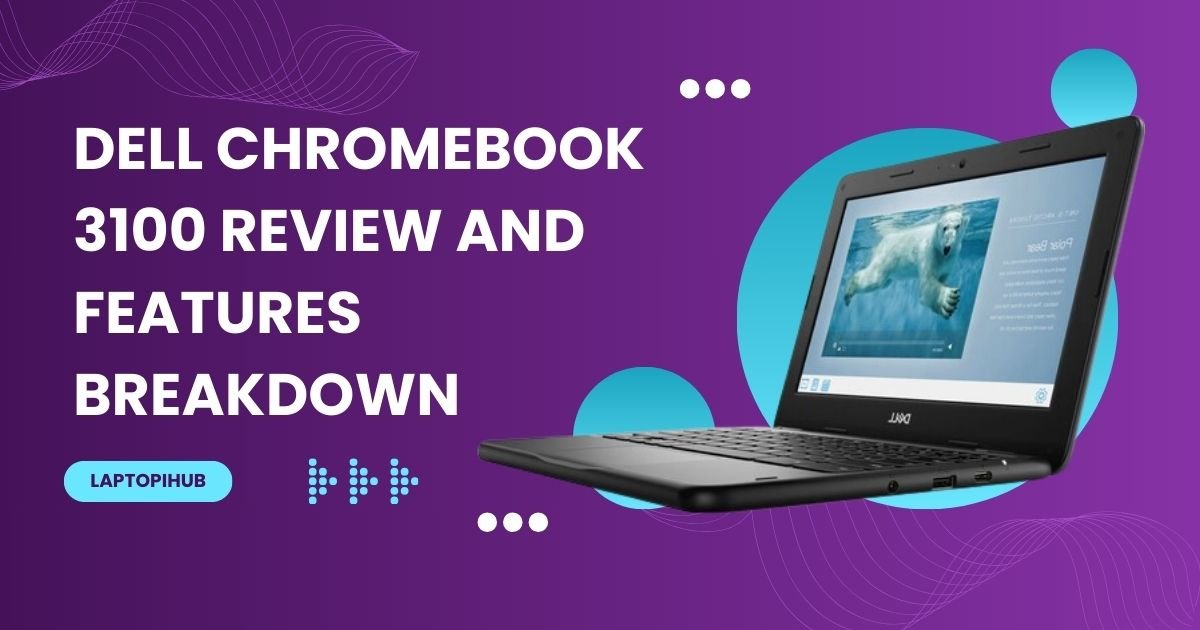
Affordable, durable, and classroom-ready—explore the Dell Chromebook 3100’s features, specs, and performance in this detailed review.
Let’s face it: not everyone needs a powerhouse laptop. If you’re a student, teacher, or just someone looking for a solid everyday device, the Dell Chromebook 3100 might be exactly what you need. It’s designed for simplicity, durability, and affordability. But does it live up to the hype?
You might be wondering, “A Chromebook in 2025? Really?” Yup. They’re still around for good reason. ChromeOS is light, fast, and perfect for users who mostly live online. Whether you’re working in Google Docs, browsing the web, or jumping on a Zoom call, it just works.
This device was clearly built with students in mind. Think classrooms, shared spaces, and chaotic backpacks. It’s not flashy—but it’s tough, reliable, and perfect for light computing tasks.
One look at the Dell Chromebook 3100 and you’ll know it’s built to take a beating. The rubberized edges and textured grip scream durability. It’s been tested to survive drops, spills, and other student mishaps.
It’s not bulky. The 11.6-inch size makes it super portable—just toss it in a backpack and go. It’s not winning any style contests, but that’s not the point. This Chromebook is a workhorse.
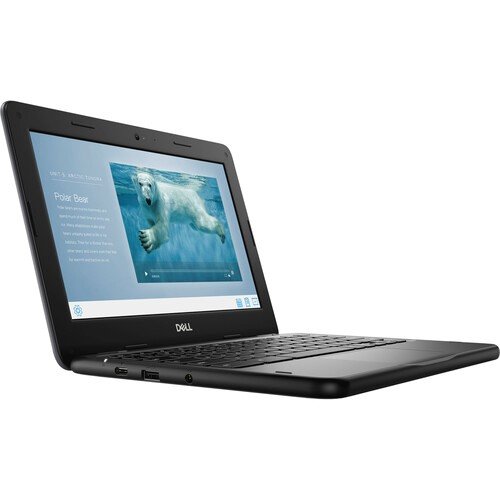
You’re getting an 11.6-inch HD (1366×768) anti-glare screen. It’s not 4K, and it’s not meant to be. The resolution is fine for everyday tasks like web browsing, reading, and watching YouTube.
Optional touchscreen versions are available. If you’re in a classroom or doing interactive tasks, it’s a helpful feature. Otherwise, the non-touch version saves you a few bucks.
The Chromebook 3100 runs on an Intel Celeron N4020 processor, which isn’t a speed demon. But for everyday web-based tasks? It gets the job done. Don’t expect to edit 4K videos, but you’ll handle Zoom, Google Docs, and streaming like a champ.
It usually ships with 4GB of RAM and 16GB or 32GB of eMMC storage. It’s not massive, but remember—most of your files live in the cloud. For schools and basic users, this is more than enough.
ChromeOS is streamlined and easy to use. It boots up in seconds, updates automatically, and doesn’t bog down like Windows sometimes does. Plus, with built-in virus protection, it’s a worry-free experience.
Want to download Android apps? You can. From Netflix to Google Classroom, the Play Store is at your fingertips—which opens up a world of possibilities.
Here’s where the 3100 shines: up to 14 hours of battery life. Seriously. This thing goes all day, even with heavy use. You’ll get through classes, meetings, and browsing without needing to plug in.
It charges via USB-C, which means one charger for all your gadgets. Plus, it charges relatively fast—about 50% in under an hour.
Despite its compact size, the Chromebook 3100 has:
That’s a solid mix, allowing you to plug in peripherals without needing a dongle.
With Wi-Fi 5 and Bluetooth 5.0, connectivity is stable and fast. Whether you’re browsing at home or streaming in class, you’re covered.
Kids are messy. Dell gets that. The keyboard is spill-resistant, which means accidents won’t end in disaster.
The Chromebook 3100 meets MIL-STD 810G standards, meaning it’s drop-tested and shock-resistant. Translation: it’s built like a tank.
The sound is decent for its size—loud enough for personal use or small group learning. Don’t expect booming bass, but it’s clear and functional.
The 720p webcam is nothing special but does the job. It’s great for video calls, remote classes, or virtual meetings.
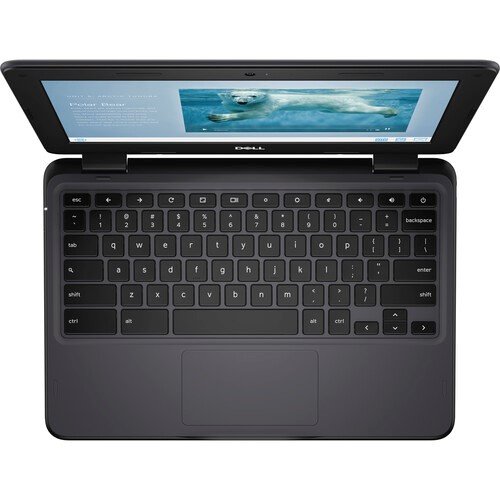
The keyboard feels good under your fingers, especially for an 11-inch device. The keys are well-spaced and tactile.
The touchpad is responsive and supports multi-touch gestures, making navigation smooth and easy.
It’s fully optimized for Google Docs, Sheets, Slides, and more. Great for students, writers, and professionals using G Suite.
With automatic updates, sandboxing, and verified boot, ChromeOS is secure without needing antivirus software.
It’s affordable, durable, and designed for learning. Teachers love the manageability, and students love the simplicity.
Google Classroom, Zoom, Khan Academy—it’s all ready to go. Some models even come with tools preinstalled.
Starting at around $250 or less, this Chromebook offers incredible value for budget-conscious buyers.
Look for bundles or education discounts. Dell’s website, Amazon, and Best Buy often have great offers.
If you use Google Docs, Zoom, and browse online—this is a great match.
Don’t expect Photoshop or AAA gaming here. This is for productivity and learning, not power-hungry tasks.
The Dell Chromebook 3100 isn’t flashy—but it doesn’t need to be. It’s practical, tough, and reliable, especially for students and anyone looking for a no-frills device that just works. If you want an affordable, classroom-proof laptop with all-day battery life and essential features, this is a no-brainer.
Yes, via web-based Office apps or Android versions from the Play Store.
Absolutely. It runs Zoom smoothly for meetings or classes.
Only for light Android games. Don’t expect to run PC or console-level titles.
Yes, ChromeOS supports Linux Beta for developers and advanced users.
It’s protected but not unbreakable. Use a case for added safety.
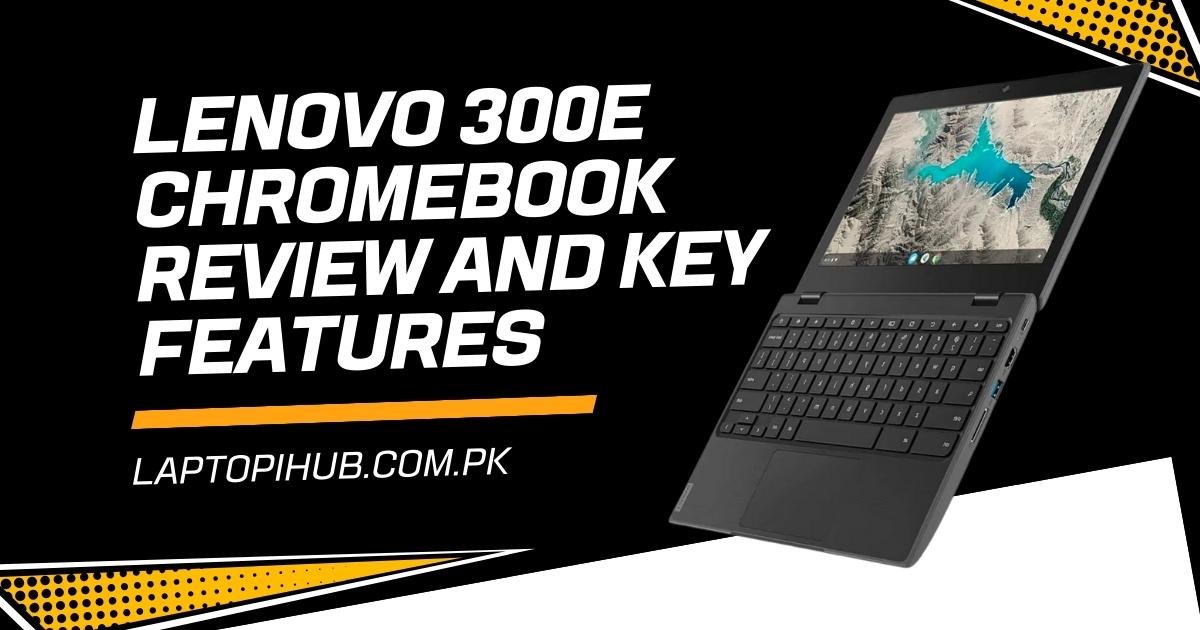
Lenovo 300E Chromebook review covering design, features, performance, and why it’s perfect for students and educators on a budget.
Looking for a rugged, reliable, and budget-friendly laptop? The Lenovo 300E Chromebook checks all those boxes and more. Designed for students and education environments, it brings together the simplicity of ChromeOS with versatile hardware that’s made to last.
This isn’t your average laptop. The 300E is specifically tailored for students, teachers, and even parents looking for a dependable, affordable Chromebook that can withstand daily use and minor mishaps.
At first glance, the design doesn’t scream “premium”—but that’s kind of the point. It’s rugged, rubberized, and built to endure. While it’s not winning any beauty pageants, it sure does hold up under pressure (literally).
Unboxing the Lenovo 300E is straightforward. Inside, you’ll find:
Setup takes less than 10 minutes. Boot it up, sign in with a Google account, and you’re ready to roll. No bloated software, no nonsense.
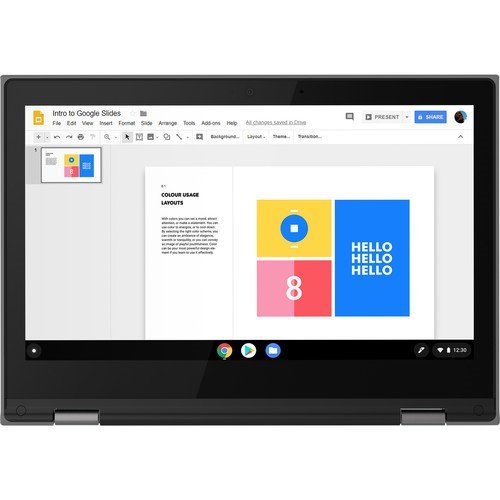
This Chromebook meets MIL-STD-810G military testing standards, which basically means it can survive drops, spills, and knocks. Ideal for kids (or clumsy adults like me).
You can use it as a laptop, tablet, tent, or display thanks to the 360-degree hinge. Versatility like this is perfect for presentations, video watching, or reading.
The keyboard is spill-resistant and comfortable for long typing sessions. The touchpad? Smooth and responsive—even better than you’d expect at this price point.
The Lenovo 300E features an 11.6-inch HD display (1366 x 768). It’s not 4K, but it gets the job done for web browsing, video streaming, and educational apps.
Yes, it’s touchscreen-enabled, and the optional EMR stylus works seamlessly. Writing notes or drawing on-screen feels natural and lag-free.
Color accuracy isn’t pro-grade, but the viewing angles are surprisingly good for a budget machine. Great for sharing content in small groups.
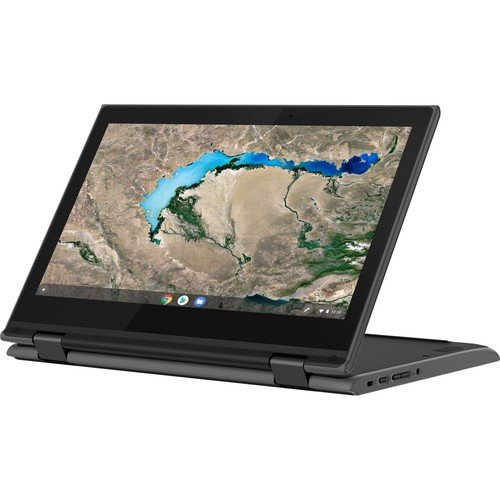
Under the hood, the 300E packs an Intel Celeron N4020 or MediaTek processor, paired with 4GB of RAM. It’s not a powerhouse—but that’s not the goal. It’s optimized for light tasks and ChromeOS.
You’ll find 32GB or 64GB of eMMC storage, which is plenty for cloud-based work. Boot-up is quick, and app switching is smooth for basic use.
In day-to-day use—Google Docs, YouTube, Zoom—it handles things well. You’ll feel the slowdown only if you have dozens of tabs open.
ChromeOS is the backbone here. It’s simple, fast, and secure. Updates install in the background, and everything runs through the Chrome browser or Android apps.
Yes, you can download apps from the Google Play Store. From Spotify to Canva, most of your favorite mobile apps run perfectly.
You’ve got access to Google Docs, Sheets, Slides, and thousands of extensions from the Chrome Web Store. Want Grammarly or Zoom? Just a click away.
The Lenovo 300E comes with a 42Wh battery, and it’s surprisingly efficient.
With USB-C charging, you can expect a full charge in about 1.5 to 2 hours. Super handy when you’re in a rush.
Real-world battery life? Around 10-12 hours with moderate use. That’s a full school day plus some Netflix at night.
You get:
No HDMI port, but you can use USB-C to connect external displays.
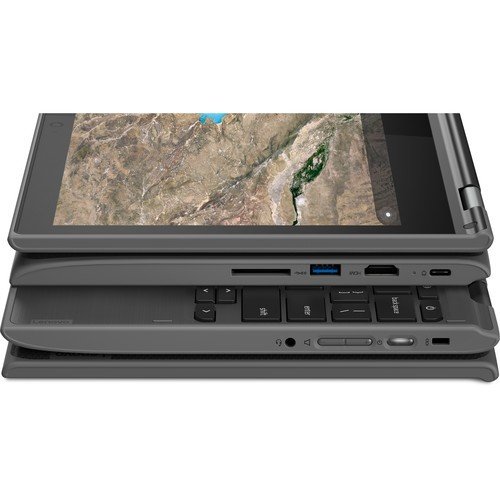
It supports Wi-Fi 5 and Bluetooth 4.2, which are fine for most online tasks and device pairing.
The stereo speakers are clear enough for video calls and YouTube, but don’t expect booming bass. It’s fine for the classroom.
A 720p webcam and decent mic make this perfect for Zoom or Google Meet. It gets the job done without frills.
Some models come with a garage-style EMR stylus. It charges while docked and doesn’t require batteries. Super convenient.
The stylus is a big win for note-taking, drawing, or interacting with educational apps.
It plays perfectly with Google Classroom, making it a teacher’s best friend and a student’s digital notebook.
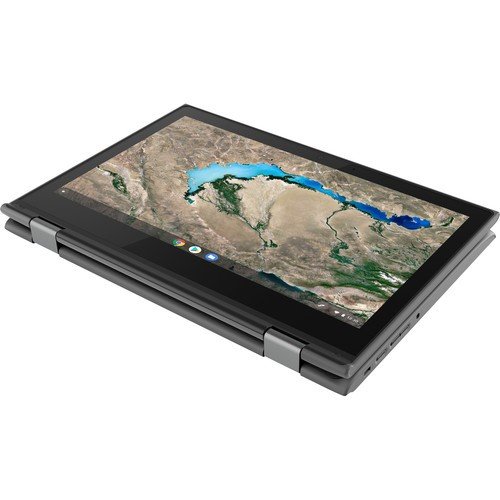
ChromeOS handles automatic updates, and you’re essentially immune to traditional viruses. One less thing to worry about.
Multiple users? No problem. Plus, Family Link allows parents to monitor screen time and restrict content.
Depending on the configuration, it ranges from $250 to $350. A solid deal considering the durability and features.
If you need a dependable, no-fuss Chromebook for school or casual use, yes—it’s worth every penny.
Durable build
Long battery life
Touchscreen + stylus support
Affordable pricing
Low-resolution display
Modest performance
Limited internal storage
The 500E offers more RAM and a slightly better processor—but costs more. The 300E is the better value for most students.
Compared to HP or Acer in the same price range, Lenovo wins on build quality and stylus integration.
Students, teachers, and casual users who want a budget-friendly Chromebook that can take a beating and keep on working.
4.5 out of 5 – Affordable, durable, and made for learning.
To wrap it up, the Lenovo 300E Chromebook is a surprisingly powerful little machine with rugged features and educational tools packed into a compact design. It’s not a high-performance laptop, but it delivers exactly what it promises—a durable, functional, and accessible Chromebook for everyday use. If you’re looking for reliability without breaking the bank, this could be your perfect match.
No, it runs ChromeOS, which is designed around Google services and not compatible with Windows applications.
Only for light gaming (like Android games). Don’t expect it to run PC-level titles.
Extremely durable—it passes military-grade tests for drops, spills, and wear.
Yes, via Office web apps or Android apps from the Play Store.
In most models, yes, but always double-check the product listing to confirm.
Lenovo 100E Chromebook review and user guide covering specs, performance, features, and tips for students, teachers, and everyday users.
Looking for a reliable, no-nonsense laptop that doesn’t break the bank? The Lenovo 100E Chromebook might just be your new best friend. It’s compact, sturdy, and built with everyday users in mind — especially students. In this review and guide, we’ll walk you through every nook and cranny of this budget-friendly Chromebook.
If you’re tired of slow boot times, clunky updates, and the constant threat of viruses, Chromebooks offer a refreshing alternative. They’re quick, lightweight, and thrive in the cloud. Plus, they’re generally easier on your wallet.
The Lenovo 100E is one of those underdog devices that punches above its weight. It’s built tough, has a surprisingly good battery life, and performs well for its price. Let’s dive into the details and see what makes it tick.
Pulling this little guy out of the box, you’re immediately met with a no-frills, rugged design. It’s clearly built to withstand the chaos of backpacks, classrooms, and coffee spills.
The Lenovo 100E Chromebook
A compact USB-C charger
Some basic paperwork and warranty info
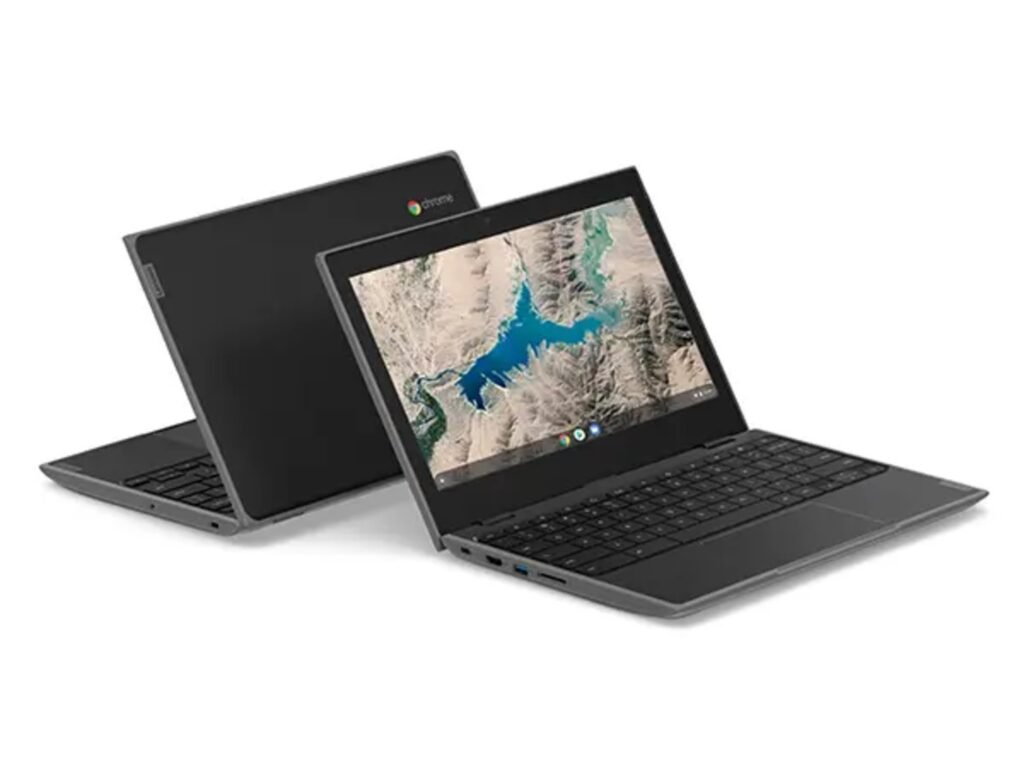
The 100E is MIL-STD-810G certified. Translation? It’s made to handle drops, spills, and pressure. Lenovo definitely had students in mind when crafting this tank of a Chromebook.
Weighing just about 2.7 pounds and measuring under an inch thick, this Chromebook is perfect for tossing into a backpack or carrying between classes.
Typing feels decent, with responsive keys that offer enough feedback. The trackpad isn’t premium, but it gets the job done without frustration.
You get an 11.6-inch HD screen (1366×768 resolution). It’s not retina-sharp, but for typing, reading, and YouTube, it’s totally fine.
Brightness is decent indoors but struggles under direct sunlight. If you’re a student working outside, you might find yourself squinting.
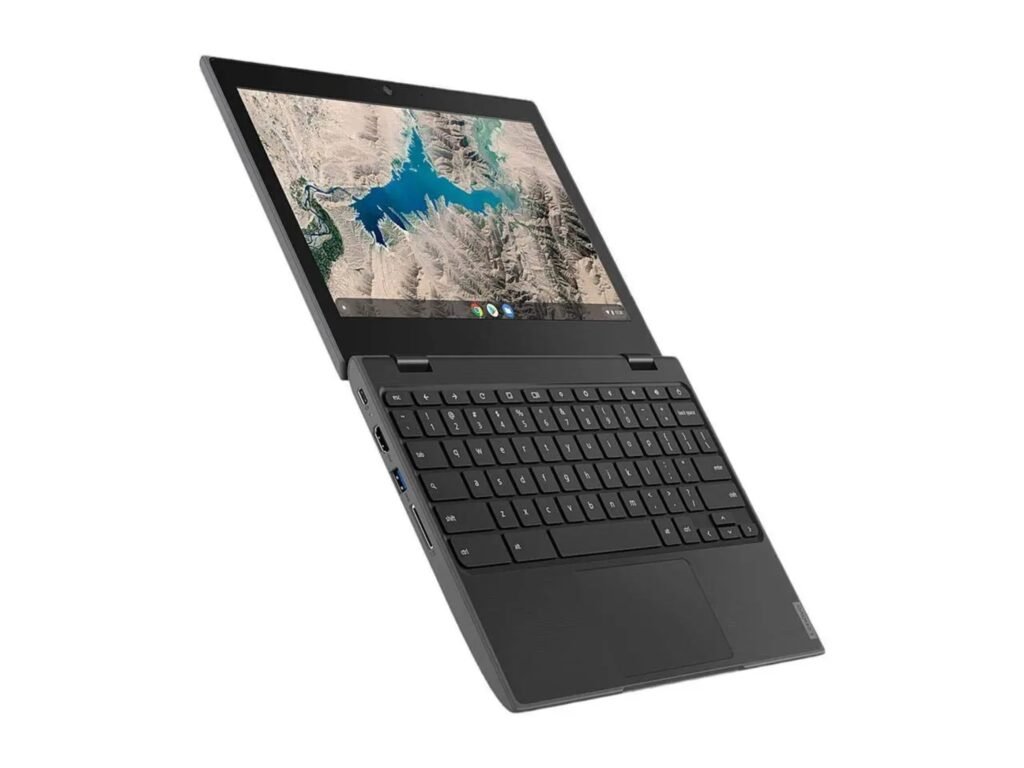
Under the hood, you’re working with a MediaTek MT8173C processor and 4GB of RAM. Don’t expect miracles, but for web browsing, docs, and streaming, it performs reliably.
Boots in under 10 seconds, apps open smoothly, and browsing with 5–7 tabs feels pretty snappy. It’s clearly optimized for ChromeOS.
If you go beyond 8 tabs or try running heavy apps, it starts to hiccup. But hey — it’s a Chromebook, not a gaming rig.
Lenovo promises up to 10 hours, and it delivers. In real-world use, you’ll get 8–9 hours easily with mixed tasks. That’s a full school day plus homework.
Charging is handled via a USB-C port and takes about 2 hours to go from 0% to full. Super convenient and future-proof.
ChromeOS is lightweight, intuitive, and updates automatically in the background. No driver downloads or software headaches here.
Yes, you can download Android apps directly. That means you can run apps like Microsoft Word, Netflix, and Spotify — all from the Play Store.
Wi-Fi performance is solid, with support for 802.11ac. Bluetooth 4.2 works fine for headphones and mice.
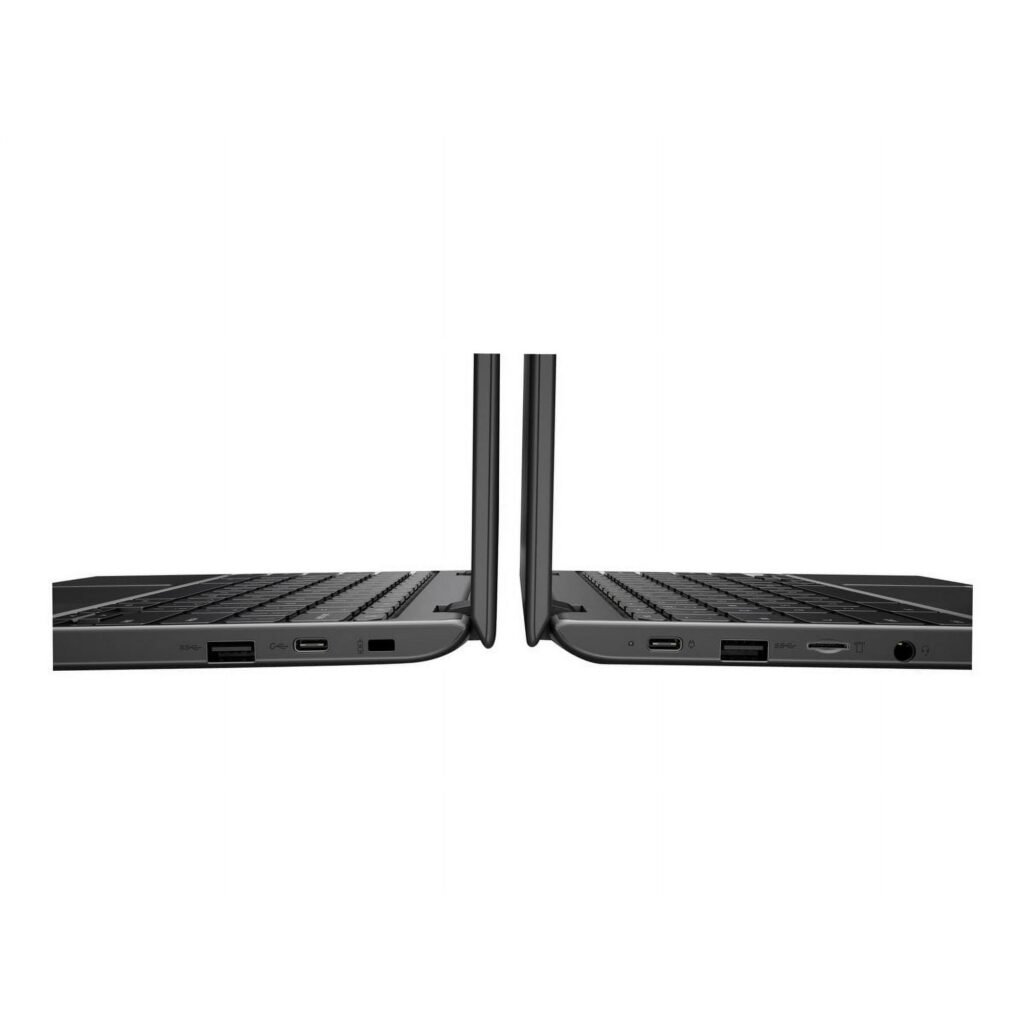
You get:
2x USB ports (Type-A and Type-C)
HDMI output (a nice surprise!)
A headphone/mic combo jack
Speakers are loud enough for a small room but can sound a bit tinny. The mic is average — good enough for Google Meet.
The 720p camera is just okay. Don’t expect HD glory, but it’ll do for Zoom calls and classroom meetings.

This is where the 100E shines. It boots fast, handles Google Docs like a champ, and works seamlessly with educational tools.
Thanks to ChromeOS, it integrates beautifully with Google Classroom, making assignment submissions and collaboration a breeze.
ChromeOS auto-updates every few weeks with the latest patches and features — silently and efficiently.
No need for third-party antivirus software. Chromebooks come with layers of protection, sandboxing, and verified boot.
Master shortcuts like:
Ctrl + T to open a new tab
Ctrl + Shift + Q (twice) to log out
Alt + [/ to snap windows
They’ll save you loads of time.
Here are a few essential downloads:
The Lenovo 100E Chromebook is a reliable workhorse — not flashy, but dependable and built to last. Whether you’re a student jumping between classes or someone who just needs a fuss-free laptop for everyday use, this little machine fits the bill. It’s affordable, functional, and backed by the simplicity of ChromeOS. What more could you really ask for in a budget device?
It’s not built for heavy gaming, but it can handle light Android games like Among Us or Crossy Road smoothly.
Yes! You can use the web versions of Word, Excel, and PowerPoint, or download them as Android apps from the Play Store.
Yes, it performs well for basic video calls and meetings, though don’t expect studio-level camera quality.
No, the standard version does not come with a touchscreen. Some upgraded models might, so check the specs before buying.
Easy — go to Settings > Advanced > Reset settings > Powerwash. Follow the prompts, and you’re good to go!
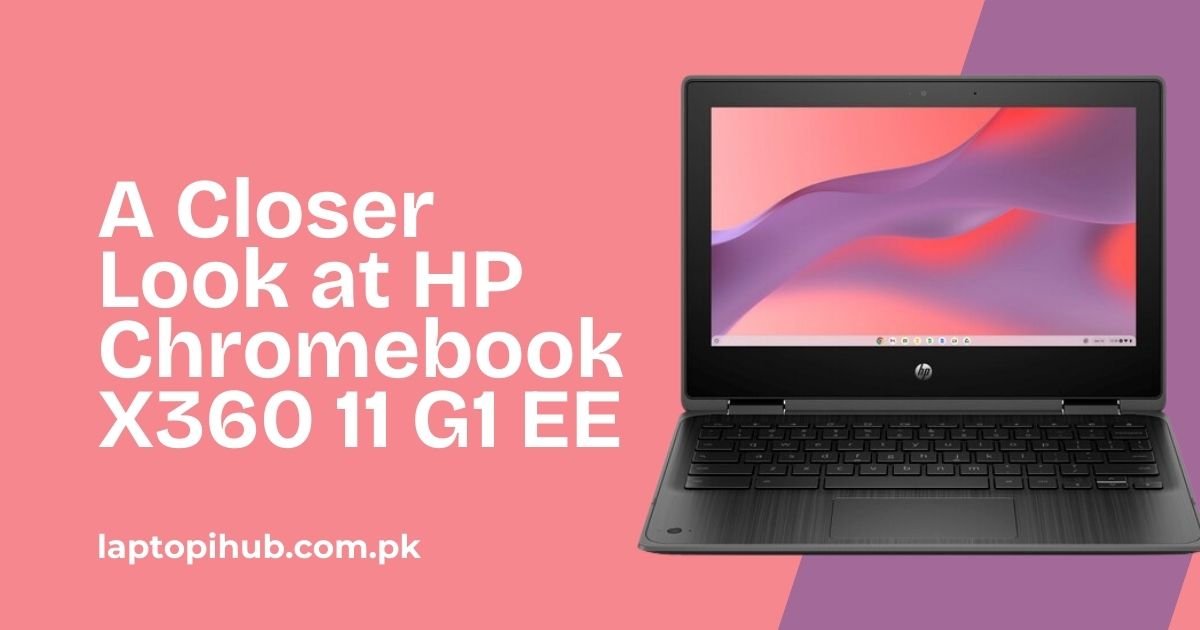
Explore the HP Chromebook X360 11 G1 EE with its durable design, flexible hinge, and performance fit for students and professionals.
Chromebooks have exploded in popularity over the past few years—and for good reason. They’re affordable, easy to use, and incredibly efficient for day-to-day tasks. Whether you’re a student, a teacher, or just someone who wants a no-fuss laptop, Chromebooks offer a reliable, streamlined experience.
Let’s zoom in on the HP Chromebook X360 11 G1 EE, a machine tailored for the educational environment. It’s rugged, compact, and packs just enough performance to breeze through classroom assignments and video calls—all without breaking the bank.
First impressions? Tough as nails. This device was clearly built with rowdy school environments in mind. Rubber bumpers, reinforced corners, and a shock-absorbent chassis give it a no-nonsense durability that parents and IT admins will appreciate.
Weighing in at just under 3 pounds, the Chromebook X360 11 G1 EE is super easy to carry around in a backpack or school bag. Its 11.6-inch frame is small enough for young students but big enough for productivity.
Let’s face it—kids aren’t always careful. HP considered that with this model. It can survive accidental drops from up to 2.3 feet and boasts a spill-resistant keyboard that can take on the occasional juice-box disaster.
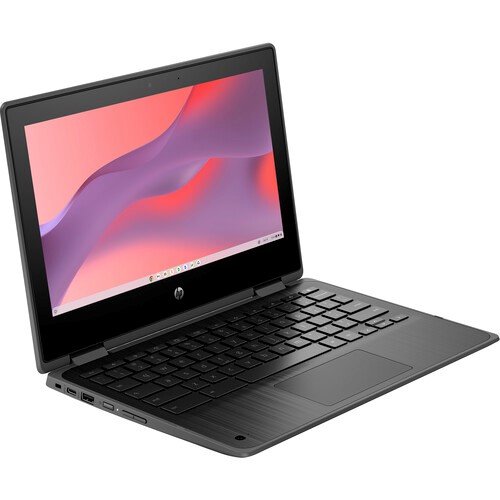
Don’t expect 4K here—but the 11.6-inch HD touchscreen is responsive and bright enough for most environments. The touchscreen makes learning more interactive and fun, especially for younger users.
With a 1366×768 resolution, it’s not mind-blowing, but it gets the job done. Colors are decent, and the anti-glare coating helps reduce reflections in well-lit rooms.
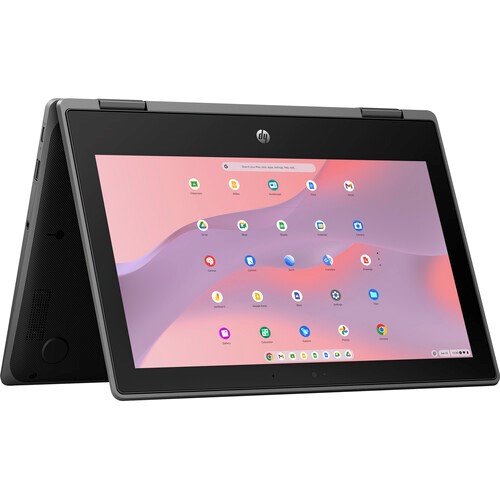
Flip it, fold it, stand it—this Chromebook bends over backward (literally). That 360-degree hinge means you can use it as a laptop, tablet, tent, or display mode. Super versatile for presentations, video watching, or drawing.
Powered by an Intel Celeron N3350, this Chromebook isn’t meant for heavy lifting. But for what it’s designed for—browsing, word processing, watching videos—it runs smooth.
You’ll typically find this model with 4GB of RAM and 32GB of eMMC storage. It’s not massive, but with Google Drive integration and cloud-first design, that’s often all you need.
For students? Absolutely. For professionals? Only if your work is web-based. It’s not built for video editing or Photoshop marathons—but for Google Docs, Zoom, and YouTube, it’s perfectly adequate.
Chrome OS is like the minimalist’s dream. It boots up in seconds, rarely crashes, and doesn’t bog you down with bloated software.
You get the best of both worlds: access to the Google Play Store for Android apps and the Chrome Web Store for web extensions and tools.
Google handles security with regular automatic updates, sandboxing, and verified boot. It’s as worry-free as it gets.
One of the standout features? Its battery life. You’ll squeeze out up to 12 hours on a single charge—enough to get through a full school day and still have juice for Netflix later.
Need a top-up during lunch? No worries. The USB-C fast charging brings it back to life quickly, so you’re not tied to a wall outlet for long.
The keyboard is pleasantly clicky for a budget laptop. It offers decent key travel and a full layout that doesn’t feel cramped, even for adults.
It’s sealed, tamper-resistant, and even features anti-peel keys. In other words, it’s built to survive curious fingers and rough handling.
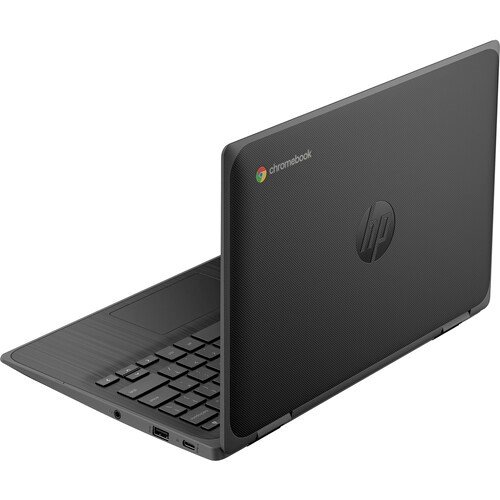
Despite its size, the port selection is solid: 2x USB-C, 2x USB-A, and even an HDMI port. That’s rare for Chromebooks of this size.
It comes with Wi-Fi 802.11ac and Bluetooth 4.2, ensuring stable connectivity whether you’re streaming or syncing a wireless mouse.

Sound quality won’t blow you away, but it’s clear enough for virtual classes and YouTube videos. Dual speakers on either side provide stereo sound.
The 720p HD webcam is perfectly positioned for Zoom calls or Google Meet sessions. Image quality is decent, even in low light.
No surprise here—this Chromebook was engineered with K–12 students in mind. It’s affordable, durable, and reliable.
If your workflow revolves around Google Workspace and online tools, this can actually serve as a solid, low-cost backup or travel laptop.

The Acer Spin 311 offers a similar 2-in-1 experience but with a sleeker design. However, the HP X360 11 G1 EE is more rugged and school-ready.
The Lenovo 100e is a strong contender for schools but lacks the 360-degree hinge, making the HP model more versatile.
If you’re looking for an affordable, no-fuss laptop that thrives in educational environments, the HP Chromebook X360 11 G1 EE is a rock-solid choice. It’s not flashy, but it’s practical, durable, and gets the job done. Whether you’re a student, a teacher, or a parent shopping for one—this Chromebook deserves a closer look.
The HP Chromebook X360 11 G1 EE isn’t trying to be the flashiest gadget on the block—it’s trying to work hard and last long. And in that respect, it absolutely delivers. With its durable build, convertible design, and student-friendly features, it stands tall as a go-to option for educational use and light everyday tasks.
Not really. It’s not built for gaming. You can play simple Android games, but anything heavy won’t run smoothly.
You can’t install the full desktop version, but you can use Office web apps and Android versions like Word, Excel, and PowerPoint.
Yes! With the HDMI port and USB-C, you can connect it to external monitors with ease.
Unfortunately, no. The RAM and storage are soldered on, so upgrades aren’t possible.
Chrome OS is one of the most secure operating systems out there thanks to sandboxing, verified boot, and regular updates.

Learn how to use NVivo for qualitative data analysis with this step-by-step guide, covering setup, coding, analysis, and visualization.
NVivo is a powerful qualitative data analysis (QDA) software that helps researchers organize, analyze, and visualize unstructured data. Whether it’s interview transcripts, survey responses, or multimedia content, NVivo makes sense of it all. Think of it as your digital research assistant, built to handle the messy, intricate details of qualitative research.
Qualitative data analysis digs deep into the “why” and “how” of human behavior. Unlike quantitative data, which focuses on numbers, qualitative analysis uncovers rich, meaningful insights from non-numerical information like texts, images, and audio files.
So, why NVivo? For starters, it’s user-friendly, versatile, and packed with advanced tools that streamline the analysis process. It also integrates seamlessly with other software like Excel and SPSS, making it a favorite among researchers and academics.

Before diving in, ensure your system meets NVivo’s requirements. The software supports both Windows and macOS, but it’s resource-intensive, so a robust computer with ample storage and RAM is ideal. Installation is straightforward—download, follow the prompts, and you’re good to go!
The NVivo interface might feel overwhelming initially, but it’s designed to be intuitive once you get the hang of it.
Navigation Pane: Helps you access your data, codes, and queries.
Detail View: Displays the content you’re working on.
Ribbon Toolbar: Hosts essential tools for your analysis tasks.
You’ll frequently encounter terms like “nodes,” “cases,” and “queries.” Nodes are where your coded data lives, cases represent units of analysis, and queries help you explore data relationships.

Starting a project is simple. Open NVivo, click “New Project,” name it, and add a brief description. This workspace becomes your central hub for managing data and analysis.
NVivo supports a variety of data types, including:
Text files (.docx, .txt)
PDFs
Audio and video files
Images
Once imported, organize your files into folders for easy navigation. For example, group interviews by participant or topic.

Coding is like highlighting important parts of a book. You assign pieces of data to categories (nodes) based on themes, concepts, or ideas.
Select the text or media segment.
Right-click and choose “Code Selection.”
Assign it to an existing node or create a new one.
Manual coding gives you control but takes time, while automatic coding uses algorithms to identify patterns.
Identify recurring themes by reviewing coded data. NVivo’s visual tools can help you spot trends effortlessly.
Use word clouds to visualize key terms in your data. Queries, like text search or matrix coding, offer deeper insights.
By organizing nodes and running queries, you can uncover complex relationships between data points.

Create models and charts to represent your findings visually. These tools simplify presenting data to stakeholders.
Use mind maps to display connections between themes, making it easier to interpret your analysis.
Analyze sentiment in text to understand the tone of responses, whether positive, negative, or neutral.
NVivo integrates with platforms like Microsoft Word, Excel, and SPSS, enhancing your workflow efficiency.
Struggling with imports? Double-check file formats and ensure compatibility.
Use consistent labels and take advantage of NVivo’s hierarchy system to stay organized.

Keep your workspace clutter-free by regularly cleaning up unused files and nodes.
Always back up your projects to avoid losing data. Cloud storage options are a lifesaver here!
NVivo is a game-changer for qualitative data analysis, offering tools that save time and enhance the depth of your research. While it has a learning curve, the payoff is worth the effort. Dive in, explore its features, and unlock new insights in your data.
You can analyze text files, PDFs, audio, video, images, and even social media content.
Yes! Although it might seem complex at first, NVivo offers tutorials and a user-friendly interface for beginners.
Use password-protected projects and back up data regularly to secure your information.
While primarily designed for qualitative research, NVivo supports mixed-method approaches, including some quantitative features.
Export data as reports, tables, or visualizations to share findings with your team or audience.
Welcome to LaptopiHub, your trusted destination for affordable and reliable laptops in Pakistan. We are passionate about helping students, professionals, freelancers, and everyday users find the right laptop at the right price.
+92 305 1113962
laptopihub@gmail.com
P-17 Arfa Kareem Rd, adjacent Shiblee College for Women, Kohinoor Town, Faisalabad, Pakistan